
To ensure your recorded stock matches the stock you physically have on hand, you should perform stocktakes at regular intervals (e.g. monthly). This article will help you understand how to manage stocktaking using the IBIS Stock module.
TABLE OF CONTENTS
- What kinds of stocktake can I perform?
- Preparing for your stocktake
- Methods of completing a stocktake
- Selling stock items during a stocktake
What kinds of stocktake can I perform?
Stocktakes help you keep on top of inventory movements, identify discrepancies quickly, and provide accurate values for financial reporting. Completing regular stocktakes ensures your end-of-year inventory runs more smoothly.
Full stocktake
Usually completed at the end of the financial year to provide your accountant with the total value of your stock on hand. It includes every item you have. Tip: Complete a full stocktake outside trading hours for an accurate snapshot of your stock.Partial stocktake
Involves counting a smaller section of your inventory (e.g. by supplier or item group). These can be completed during trading hours to keep stock accurate throughout the year.
Note: You can run multiple partial stocktakes at the same time, as long as the same item isn’t included in more than one adjustment.
Preparing for your stocktake
Before starting a stocktake:
Ensure all purchase orders are completed if stock has been received and put out for sale.
Ensure all stock transfers between locations are completed so stock is recorded in the correct location.
Record any damaged or written-off stock using a stock adjustment, so it is removed from your system counts.
Try to minimise stock movement during the stocktake. If possible, complete your stocktake outside trading hours or pause stock purchases, transfers and adjustments until counting is finished.
Methods of completing a stocktake
During a stocktake, you and your staff count and record each item in your store. You then complete a stocktake adjustment in IBIS to update your system records. This ensures you can report on any variances in stock levels, including costs.
You can complete a stocktake in one of two ways:
- Manual entry in IBIS – using a printed stocktake report, then entering counts directly into an Adjustment. Best for small stores or stocktakes where barcode scanners are not available.
- Using the IBIS Utilities website – scanning items into a web application that feeds results directly into a IBIS stock Adjustment. You can scan using:
- A barcode scanner connected to your phone or tablet
- Your phone/tablet camera: Phone cameras aren’t ideal for barcode scanning - camera based scanning works but is often unreliable and inconsistent.
Option 1: Manual stocktake in IBIS
Under the Stock menu, click Stocktake report.
Select filters/groupings and click Refresh (you can choose to display or hide the current stock count.)
Physically count the items for each retail location and record them on the report.
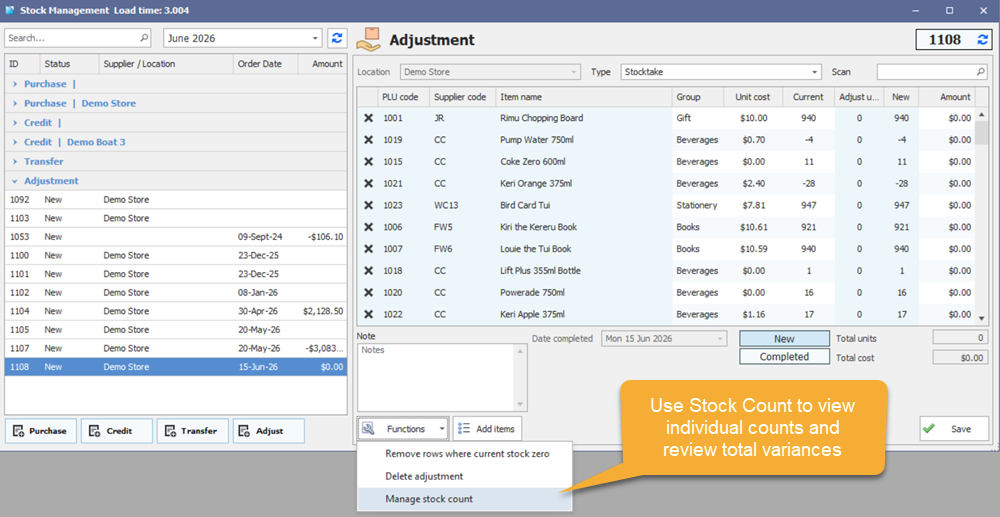
Open the Stock mmnagement screen, and click the Adjustment button.
Select the correct Location and click Refresh.
Add items using Add items (by supplier or group) or by adding rows individually.
Enter counts into the New stock column or variances into the Adjust units column.
Remove any unchanged rows using the X.
Under Functions, you can:
Remove rows where current stock = 0
Set the adjustment type to Stocktake, add any notes, and save.
When finished, change the status to Completed and save again to post changes to your stock ledger.
Option 2: Stocktake using the IBIS Utilities site
The IBIS Utilities application helps you count stock more efficiently if you use product barcodes or IBIS-printed stock labels. The app is browser-based, works on any device, and feeds counts directly into a stock adjustment in IBIS.
IBIS Utilities offers two different options for stocktaking:
- Stocktake (single-user): Best for stores with limited inventory or for performing quick/partial stocktakes.
- Stock count (multi-user): Best for stores with large inventories or team-based full stocktakes with multiple users. Compatible with barcode scanners only (camera-scanning is not supported).
Single-user stocktaking using IBIS Utilities
- Open IBIS Utilities on a browser on your scanning device, then log in with your IBIS server code, username, and password (SSO is not supported).
Select Stocktake on the homepage.
Choose to create new or edit an existing adjustment:
New adjustment: Select the location you want to stocktake and add a note if required, then click Next.
Edit existing adjustment: Select the adjustment ID from the Edit existing list to resume.
Place your cursor in the Scan or Type field, then scan the barcode using a scanner or mobile scanning device (we do not recommend using your mobile phone camera, as it does not detect barcodes well). Alternatively, type the PLU code.
Adjust the quantity if required using the following methods:
By scanning multiple times (scanning the same item later will increase its count automatically).
Using the + / – buttons
Typing a number manually, then press OK.
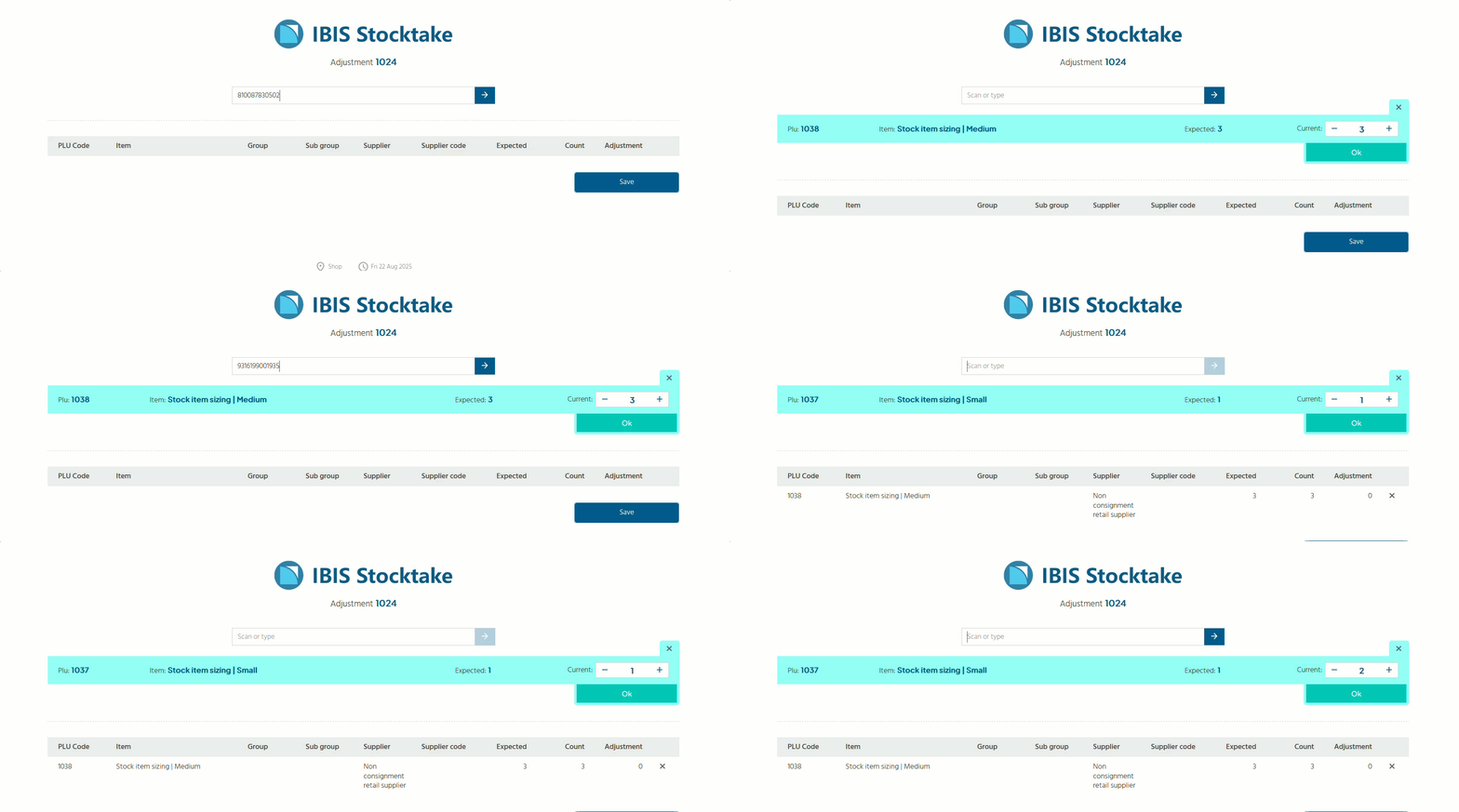
To edit an item, double-click it in the list and adjust the count. To remove an item, click the X beside it (this cannot be undone).
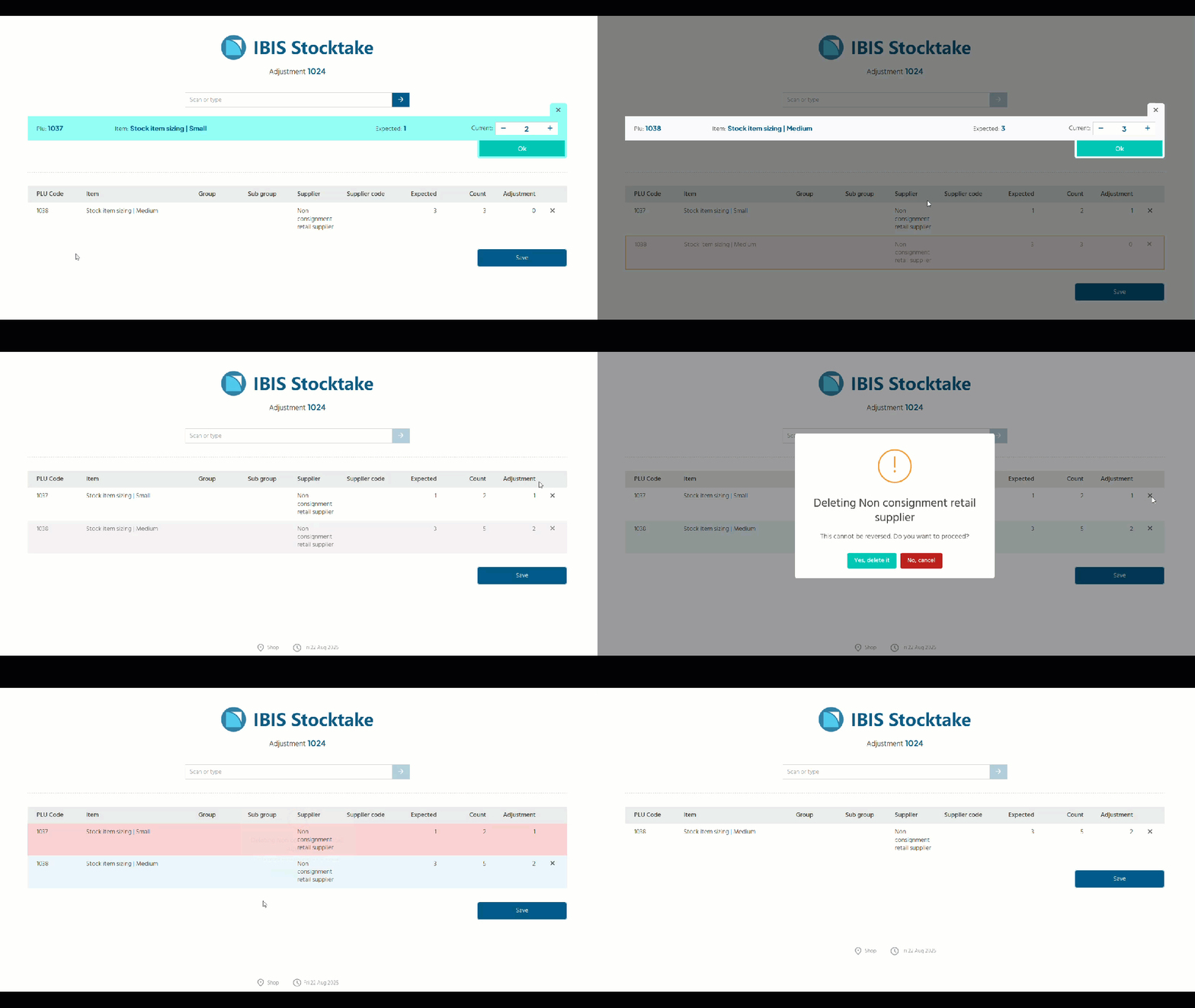
Click Save regularly to update the stock adjustment in IBIS. You can continue scanning after saving or log in later and resume from Edit Existing.
When you have finished scanning, open the adjustment in the Stock management screen in IBIS, review counts for accuracy, then change the status to Completed to finalise and update your stock levels.
Limitations: Only stock items can be entered, and only one person can scan into an adjustment at a time.
Multi-user stocktaking using IBIS Utilities
Stock count uses a predefined list of items from a stocktake adjustment in IBIS. Multiple users can scan at the same time, with individual counts combined for a final variance review before being applied to the adjustment.
Stock Count is only compatible with barcode scanners - camera scanning is not supported.
- Create your stocktake adjustment
- In Stock management, create a new Adjustment
- Set the type to Stocktake
- Select your location and click Refresh
- Add items by entering PLU codes manually, or use Add items to include all items or filter by supplier, group, or subgroup
- Click Save
- Scan items using IBIS Utilities
- Open IBIS Utilities in a browser on your scanning device
- Log in using your IBIS server code, username, and password (SSO not supported)
- Select Stock Count
- Open your stocktake adjustment from the list
- Create and manage user counts
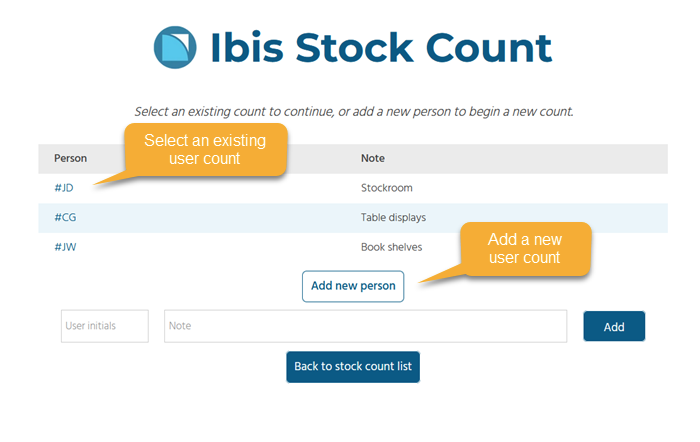
- Select New Person to create a count for each user. Enter user initials and add an optional note (e.g. area being counted or scanner number)
- To continue an existing count, click the Person hyperlink
- All items in the adjustment will be pre-loaded into each count
- Scan items and record the count
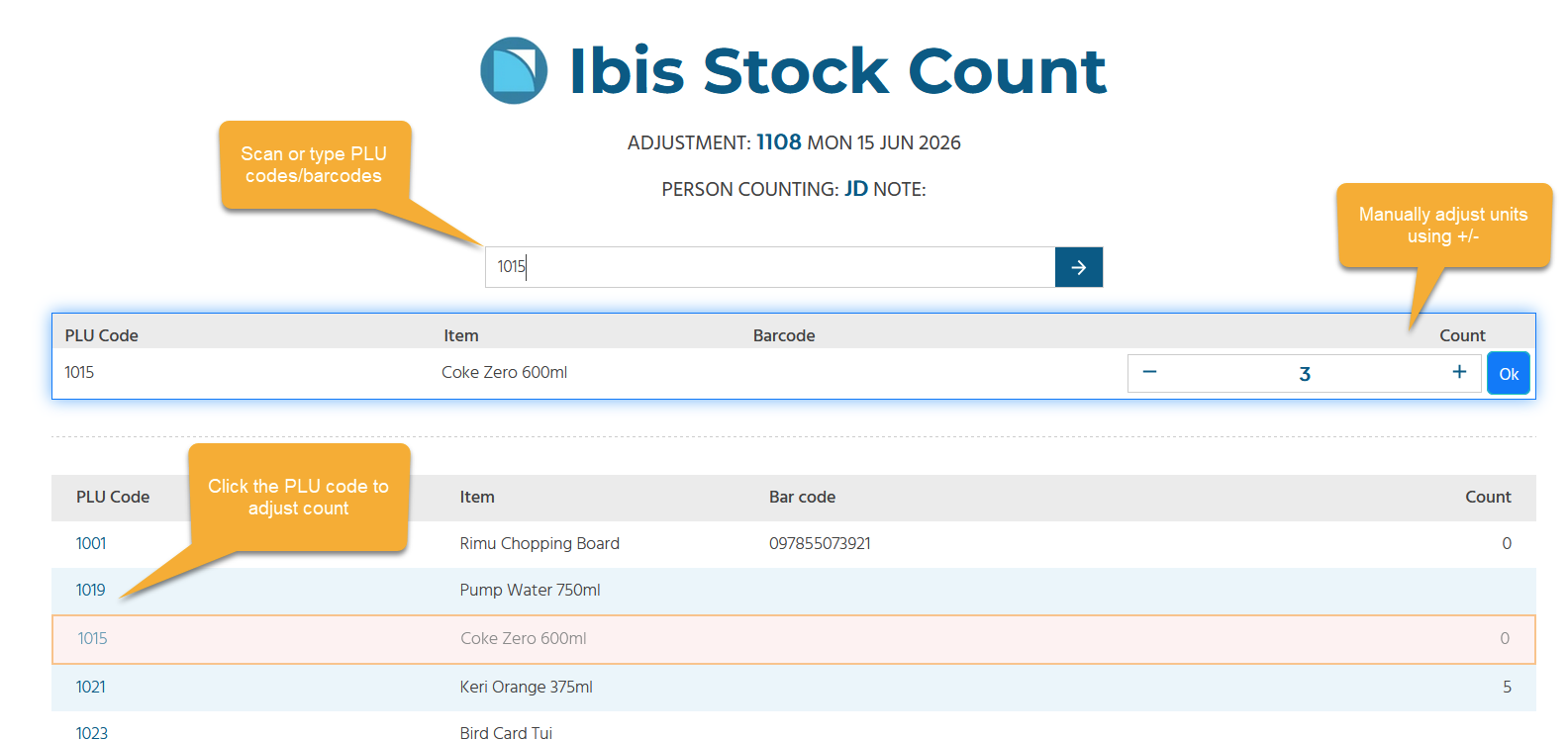
- Place your cursor in the Scan or Type field, then scan barcodes using your scanner, or type the PLU code into the field.
- To adjust quantities:
- Scan the same item multiple times to increase the count
- Use the + / – buttons
- Enter a quantity manually, then click OK
- To edit the quantity on a previously-counted item, click the PLU code to bring it back into focus and update the count
- Counts are saved automatically
- Review counts and check variances in IBIS
Once counting is complete, return to IBIS:- Go to Stock Management > Adjustment
- Open your stocktake adjustment
- Select Functions > Manage Stock Count
- Use the Stock count screen to review results:
- Individual counts tab: view and edit counts for each user
- Variance review tab: displays all items with current stock on hand (SOH), individual counts, total count, variance
- Use Show variances only tick box to focus on discrepancies. If variances are found:
- Recount items as needed
- Edit counts directly in the screen
- Note: If 0 units are counted but stock on hand (SOH) is greater than 0, the system will retain the current SOH.
To set stock to 0, ensure the final count is entered as 0.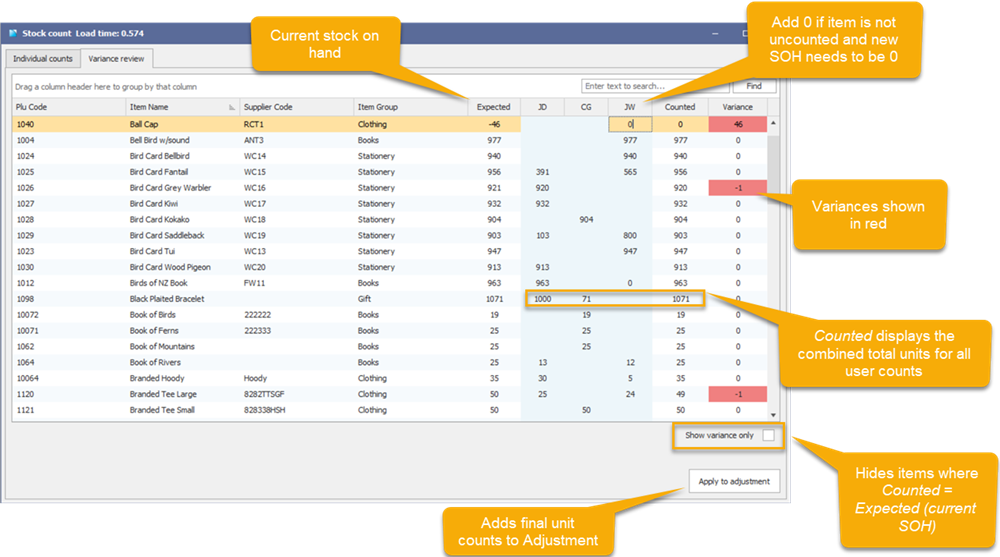
- Finalise count
- Click Apply to adjustment to update the stocktake adjustment with final counts.
- Review the adjustment
- Change the status to Completed, then click Save to update stock levels
Selling stock items during a stocktake
If you are going to be operating during your stocktake, you will need to account for items that are sold throughout the day. You can update the current units on the Adjustment by finding the sold item within the grid, then clicking the row and hitting enter to update the current stock on hand, then amend the units as required.
You will need to take care in making the correct adjustments for sales as they occur. It is no good to run a sales report at the end of the day for items sold during the day as items may have been sold before the count is completed and then sold again after. Example:
- I have 7 magnets in stock. I sell 2 in the morning.
- I count the magnets for my stocktake and correctly count 5.
- I then sell another 3 magnets during the day.
- At the end of the day I run my Sales report and it tells me I sold 5 magnets, so I change my count to 0 in the stocktake adjustment grid to compensate.
- When I commit the stocktake, my stock level will be 0, but I started with 7 and sold only 5 so I still have 2 magnets in stock.
This is wrong and demonstrates why it is important to account for sales of stock as they happen. Note this also applies to refunds. The alternative to this is not to process sales during the stocktake.