TABLE OF CONTENTS
- Set up a new price season
- Copy all pricing from a previous season to a new season
- Update product pricing
- Delete a season
- How to set up pricing for different agent accounts
- Add a new price option to an existing product
- Cap commission on a product or product components
Watch a 5-minute video on the Build products and Manage seasons screen here:

Set up a new price season
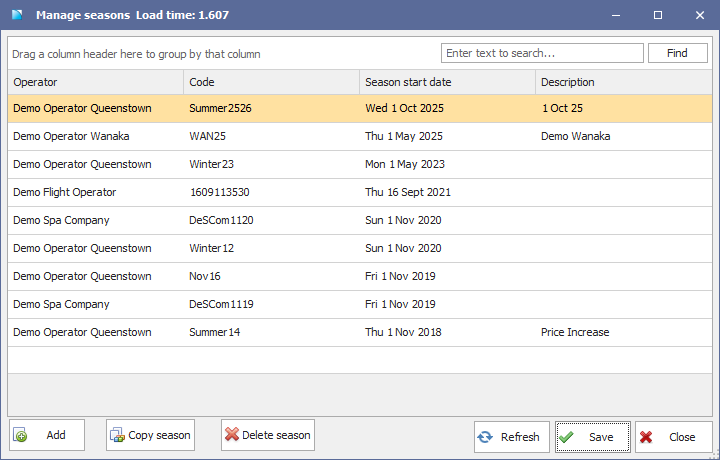
For activity operators using the Reservation module, IBIS manages price date ranges for your products in the Manage seasons screen. You must have at least one price season in your system before you can begin setting up pricing for your products. A season can start on any date and ends when the next season is created - you cannot have overlapping seasons.
You can add your new season prices at any time, the system will display appropriate seasonal pricing based on the date you are making a booking for. If agents are booking your products online they will also get the correct price for whichever date they select.
- Open the Manage seasons screen, then click Add.
- Select the Operator from the drop down list
- Enter a Season code, it must be alphanumeric characters only (a-z and 0-9), with no spaces or dashes and once it is set you CAN NOT change it. E.g. OCT2022
- Select the Season start date from the calendar.
- Type in a short descriptive Note for the season.
- Click Save and confirm your changes.
Copy all pricing from a previous season to a new season
If you are setting up a whole new price season for an operator that already had pricing set up in a previous season, save yourself time by copying all the pricing from a previous season to your new one. Then just update the specific rates that need to be changed.
- Open the Manage seasons screen.
- Select an old price season you have setup for your operator.
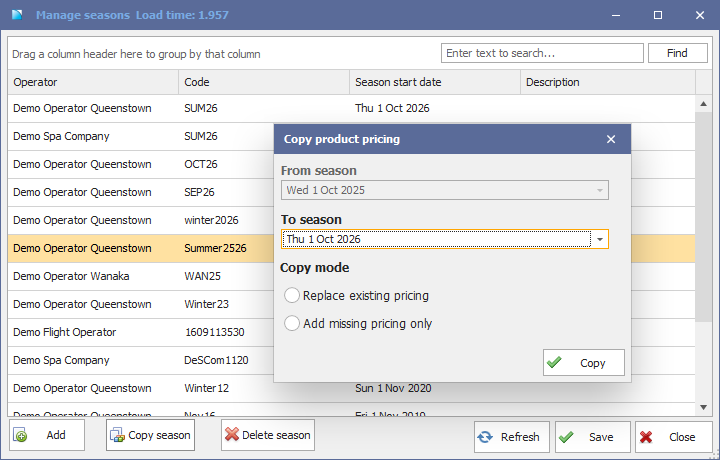
- Click the Copy season button, then select the target season.
- Select your copying mode: replace all existing pricing (so it overwrites anything that was there), or add missing pricing only
- Click Copy
- You'll see confirmation.
A price season is managed per operator. If you have multiple operators in your system that you are updating pricing for, repeat these steps per operator.
Update product pricing
Once you have added a new pricing season to your system, you can begin updating your pricing.
- Open the Build product screen.
- Select the product and choose the season you wish to update from.
If you want to copy pricing from a previous season for a specific product, use the Copy pricing from selected product option under the Function button, then choose the season you wish to copy too.

To copy pricing for an entire season (all products for the selected operator) use the Copy season function found in the Manage seasons screen.
Add your pricing against the correct option under each price code.
If you cannot see a price option, tick the box show all price options and select from there
Use the filter to find price options faster by clicking the filter icon on the option name column header
Pay attention to notes in red alerting to you when a price code is shared across multiple products. You will be updating the pricing for all the products that share a price code.
Once finished, Save your changes.
Delete a season
If you added a season to the wrong operator, or just want to start over entering pricing, you can delete a season. Deleting a season removes all pricing and the season from your system and is not reversible.
Do NOT delete your current price season before you have a new one in place.
- Open the Manage seasons screen.
- Select the price season you wish to delete, then click Delete season.
- Confirm you wish to delete when prompted.
How to set up pricing for different agent accounts
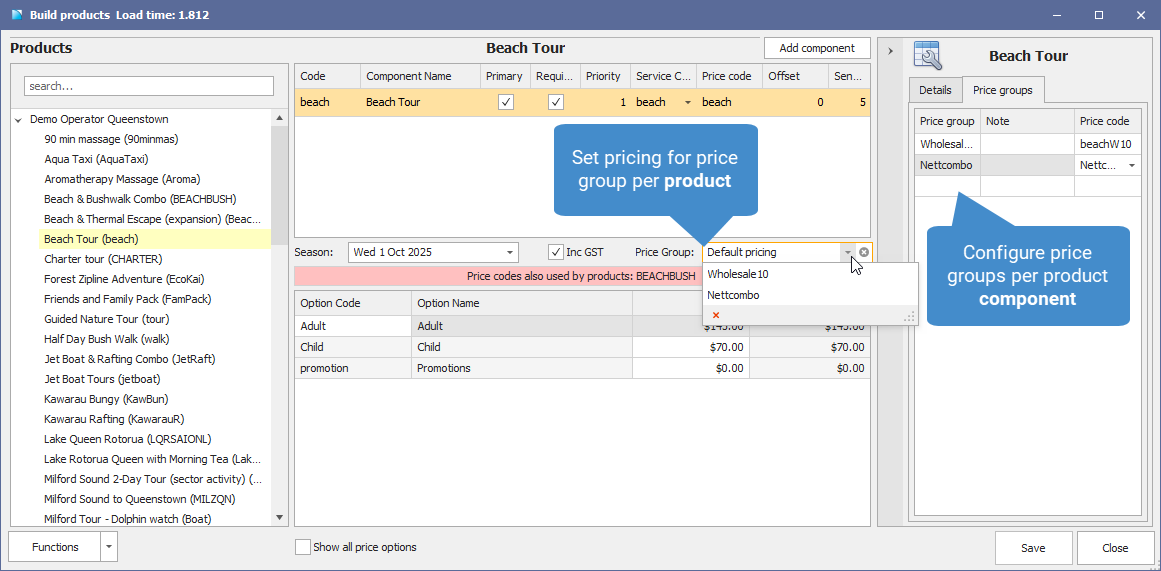
IBIS supports customised pricing by allowing unique price groups to be assigned to specific agent accounts. For operators, this means that when your front desk staff select an agent during booking, the pricing will automatically update based on the agent’s assigned price group.
If you’ve negotiated the same rates with multiple agents, you can assign them to the same price group to make the setup easier. E.g. A group of wholesale agents who receive the same net rate across all products.
To set up agent-specific price group pricing, follow these steps:
- Create a price group for Accounts eligible for these rates
- Open the Accounts screen and enter a grouping name in the Price group column (e.g. Wholesale10). The group name can be whatever you want, but all accounts that you allocate to the same price group must have the same rates across all your products.
- Click Save and confirm the changes.

- Set up a new price code
- Open the Price Code screen and click the Add button
- Select the relevant Operator
- Enter a price code name (no spaces) and a description.
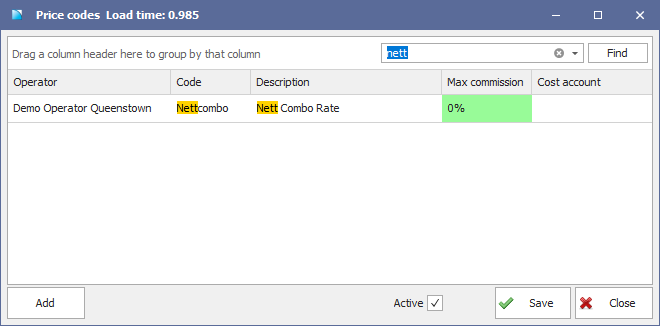
- Enter the Max commission rate (percentage). Note: If you have negotiated a wholesale net rate with an agent, these are typically NOT commissionable, so set the max commission to 0.
- Save your changes, then close the screen.
- Set up the price code against the price group for the product
- Open the Build products screen, and find your product
- Select the component, then click on the Price groups tab
- Select your price group, then find the relevant Price code you just set up and click Save.
If you are not going to use the same price options as the default price code AND the product is multi-component, you will need to ensure you configure a new price code for the subsequent components. This ensures the pricing will fill down correctly when this product is booked.
- Update pricing for the new price code
- Select the price group in the pricing grid from the Price groups drop down
- Enter pricing against each option appropriate for your new price code (e.g. Adult and Child), then click Save.
Add a new price option to an existing product
For a price option to appear against a product, a price must be added to the option in the Build products screen. Follow these steps to add a new price option to a booking:
- Check if the option exists in the Price options screen (it may already be set up for another product).
- Open the Build products screen and select your product
- Ensure you have the correct Season selected
- Tick the Show all price optionstick box and enter pricing for your new option against the relevant price code(s)
- Use the filter to find price options faster by clicking the filter icon on the option name column header
- Note that if you want the option to show in the booking as $0.00, you must enter the price as $0; if it's blank, the option doesn't show in the booking.
- Some multi-component products have the booking price set against the main component, and the other components set as $0. Follow the logic of the existing setup for that product's price options.
- Repeat for future seasons if your new price option should be available.
- You can use the Copy pricing for selected product feature in the Functions menu to copy the pricing from the previous season if you set up multiple new price options and want to make things quicker (note: this currently only copies the default pricing, no other price groups.) You then just need to update the pricing in the future season if required.
Cap commission on a product or product components
You can restrict the amount of commission you pay on a product or product component using the Max commission feature. This is configured against the price code for a product component - it will override any commission level specified against an agent account for price options within the component.
Setting a max commission is useful for situations like food add-ons or combo partner products, where you must restrict the commission you can pay on a specific product or component within the product.
To set the max commission on a price code:
- Open the Price codes screen and locate the price code you want to restrict commission on. You can use the search to narrow your list down.
- In the Max Commission column, specify the maximum commission, e.g. 20%. You can specify any percentage, including 0% - which means that the account will get no commission at all on the component.
- Save your changes.
When you post a reservation to invoice and the default commission rate for the agent is greater than the maximum commission specified for the price code, you'll see the max commission rate listed in the commission line. If there are multiple components and only one has a maximum commission rate specified, you may see two different commission rates listed, e.g. 25% commission on $200 for Adult, 20% commission on $50 for Photos.