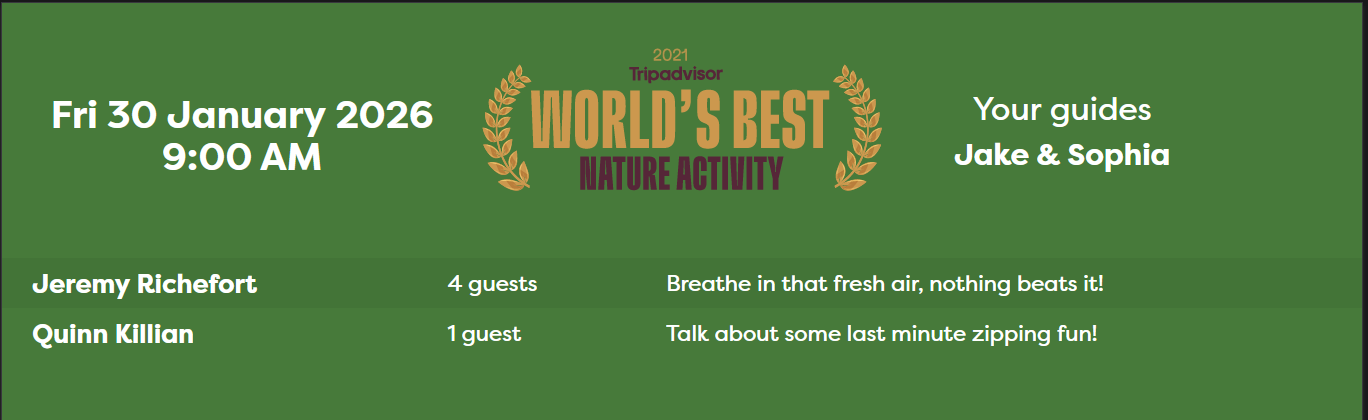
The Welcome Screen is designed for front-of-house use to clearly display upcoming departures, assigned guides, and passenger details. It is intended to be displayed on external monitors connected to the front desk.
The screen updates automatically throughout the day and can be branded per customer and per product.
What the welcome screen displays
For each upcoming departure, the Welcome Screen shows:
Product-specific departures
Assigned guide(s)
Booking names
Number of guests per booking
Optional booking notes
Automatic progression to the next departure once a trip departs
A final message once all trips for the day are complete “All trips completed for today”
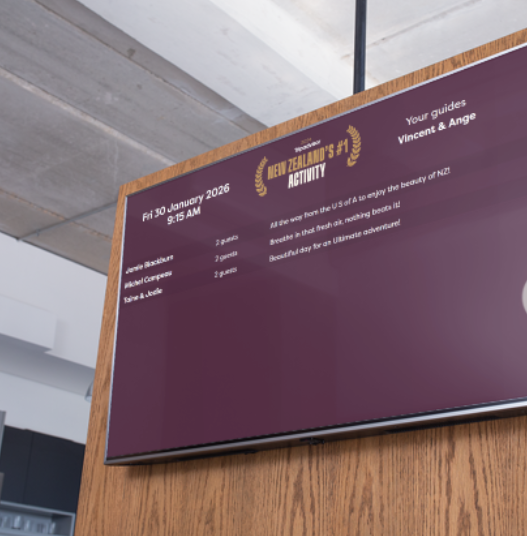
Branding & styling
The Welcome Screen can be branded to match your business identity, including:
Logo
Header styling
Fonts
Colours
Where applicable, the background colour can be set per product to match your branding. This can make it easier for guests to visually identify their tour.
How the welcome screen is used
The Welcome Screen runs within the Arrivals App (checkin.ibisnz.com)
One or more external monitors are connected via HDMI at the front desk to display the Welcome screen(s)
Each monitor can display a Welcome Screen filtered to a different product
How to configure the welcome screen
Please request IBIS support to enable the Welcome Screen and advise the product codes you wish to use for your Welcome products.
Once enabled, Welcome buttons will appear on the Check-in screen home page. Click the button to launch the welcome screen for that product.
Configuration and licence fees apply. Please discuss with IBIS.
Display logic
The name displayed is the Booking name.
You can display notes entered in the Operater note field. Only content entered after an | symbol will be shown.
Lead guide names are pulled from the Departure note field in the Specific availability screen. Other guides names are pulled from the Resource field. Use an ampersand (
&) between names if there are 2 or more.These fields may need to be added to your default screen display if they do not currently show.
To view all departures you can append
&timeFilter=Falseto the end of the Welcome screen URL.The Rollover time is set to 15 minutes after the departure date/time before it automatically rolls over to the next tour.