
This guide contains the steps and processes to get your kiosk ready. It covers building your kiosk with the IBIS build script, the kiosk URLs, registering the kiosk, Smartpay EFTPOS pairing, and the messages shown to customers. Work through the sections in order.
It is worth plugging a USB keyboard into the device for the configuration.
TABLE OF CONTENTS
- Building your kiosk with the IBIS build script
- Kiosk setup if NOT using the IBIS build script
- Kiosk URLs
- Smartpay EFTPOS pairing
- Configuration requirements checklist
- Quick reference
- Support
Building your kiosk with the IBIS build script
Setting up a kiosk from scratch means creating a Windows account, changing power settings, turning off touch gestures, and building a shortcut, all before you can even get to the actual kiosk settings. The IBIS build script does all of that for you automatically, so you don't have to worry about setting any of it up yourself. It gets your Windows device ready to run as a kiosk, then takes you straight to the webpage where you enter your kiosk's own settings, like your products and location. This is the easiest way to get going, and the one we'd recommend for most people.
- Download the installer (
IBIS-Kiosk-Setup.exe) that IBIS sends you, and copy it onto the kiosk device. - Run the installer. Windows SmartScreen will likely warn that it's from an unrecognised publisher. Click More info, then Run anyway.
- When prompted, enter your kiosk URL. This is your IBIS eCommerce site address.
- The installer takes care of the rest automatically: it installs Chrome if needed, disables sleep and the swipe-up gesture, sets up auto-login, creates the Start Kiosk and Kiosk Setup shortcuts, and opens the registration page for you.
- Continue to Register the kiosk under Kiosk URLs below to finish setup with your product codes and location.
Note: Only work through the Kiosk setup if NOT using the IBIS build script section below if you can't use the installer for some reason. If you've already run it, skip ahead to Kiosk URLs.
Kiosk setup if NOT using the IBIS build script
If you can't use the build script for some reason, here's how to get the same result by hand. It covers exactly the same account, power, and shortcut changes that the script would otherwise take care of for you, just done manually, step by step. The dedicated kiosk account needs Administrator permissions to apply most of these changes.
Note: We recommend against using Windows Assigned Access (the built-in Windows kiosk mode). It only supports Microsoft Edge, and the IBIS Kiosk software runs in Chrome. The settings below give you the same effective lockdown manually while keeping Chrome as the browser.
Click the section to expand for further details
Windows account configuration
Before you start on anything else, set up a dedicated Windows account just for the kiosk. It needs to be a local account with Administrator permissions, you'll be using that access shortly to configure Chrome, adjust power settings, turn off touch gestures, and set up Smartpay.
- Local Windows account
- Administrator permissions (required for initial setup and configuration changes)
- Used only for kiosk operation
Administrator access is required to
- Configure Chrome correctly
- Modify power settings
- Disable touch gestures
- Complete Smartpay configuration
- Apply system configuration changes
Keep this account for the kiosk only, don't share it with a staff login used for anything else.
Configure power settings
You don't want the screen dimming or going to sleep halfway through a customer's booking, so sleep mode and screen timeout need to be switched off completely.
- Go to Start > Settings > System > Power & Sleep
- Set:
- Screen: Never
- Sleep: Never
Advanced settings
- Go to Control Panel > Power Options
- Select the active power plan
- Click Change plan settings
- Click Change advanced power settings
- Confirm all sleep settings are disabled
Disable Windows touch swipe-up gesture
This stops customers accidentally swiping up and landing on the Windows taskbar or Start menu, somewhere they shouldn't end up. Use one or more of the options below, once done, swiping up from the bottom of the screen won't do anything.
Option 1: Disable edge swipe via Local Group Policy
- Press Windows + R
- Type:
gpedit.msc - Navigate to: Computer Configuration > Administrative Templates > Windows Components > Edge UI
- Set Allow edge swipe to Disabled
Option 2: Disable tablet mode gestures
Settings > System > Tablet
Option 3: Hide the taskbar
Taskbar settings > Automatically hide the taskbar in desktop mode
Configure the Chrome kiosk shortcut
This shortcut is what you'll actually use to run the kiosk day to day, it launches Chrome straight into full-screen kiosk mode. Build it once everything else, enabling and registering the kiosk, and (if you're using Smartpay) pairing the terminal, is done.
- Right click on the desktop
- Select New > Shortcut
- Enter:
"C:\Program Files\Google\Chrome\Application\chrome.exe" - Click Next
- Name the shortcut something like Kiosk or IBIS Bookings (just to make it clear it is the Chrome kiosk shortcut)
- Right click the shortcut and choose Properties.
- Update the Target field to:
"C:\Program Files\Google\Chrome\Application\chrome.exe" --kiosk https://your-kiosk-site/kiosk
Replace https://your-kiosk-site with the operator’s IBIS eCommerce URL supplied by IBIS.
Double click the shortcut to confirm Chrome launches into the kiosk and lands on the customer-facing main menu.
Note: Use straight quotes only. Curly quotes copied from Word will break the Target field.
Daily startup procedure
Once everything above is set up, running the kiosk day to day is simple:
- Power on the kiosk
- Log into the kiosk account
- Double click the IBIS Bookings shortcut
- Confirm the site loads correctly in full screen
If the EFTPOS terminal is not paired (after a cookie clear or major reset), work through the Kiosk URLs and Smartpay EFTPOS pairing sections before opening to customers.
Restart procedure
- Close Chrome
- Restart Windows via Start > Power > Restart
- Log back in
- Relaunch the IBIS Bookings shortcut
Kiosk URLs
There are three URLs you'll come across while setting your kiosk up.
/kiosk/allow/ibiskiosk26– switches kiosk screens on for that device. You'll only need to visit this once, the first time you set a device up./kiosksetup– where you'll register the kiosk, set its messages, and pair Smartpay./kiosk– the page your customers actually see. This is the one your Chrome kiosk-mode shortcut points at.
If you used the build script, the enable step and the Chrome shortcut are already done for you. The steps below still apply either way.
Click the section to expand for further details
Enable the kiosk (/kiosk/allow/ibiskiosk26)
By default, kiosk screens are switched off. If you visit /kiosk before doing this step, you'll just land on your normal homepage. Do this in a normal Chrome window on the kiosk account, before building the kiosk-mode shortcut.
Open Chrome normally on the kiosk account and go to:
https://{your-kiosk-site}/kiosk/allow/ibiskiosk26
You'll be redirected straight to the setup screen at /kiosksetup, that's your sign it's worked. This sets a cookie on the device that stays in place until the browser's cookies are cleared.
It only applies to the Chrome profile you did this on, so make sure it's the same account and profile that will actually run the kiosk.
Note: ibiskiosk26 is a basic access word to stop random visitors landing on the kiosk URL. It is not a security control.
Register the kiosk (/kiosksetup)
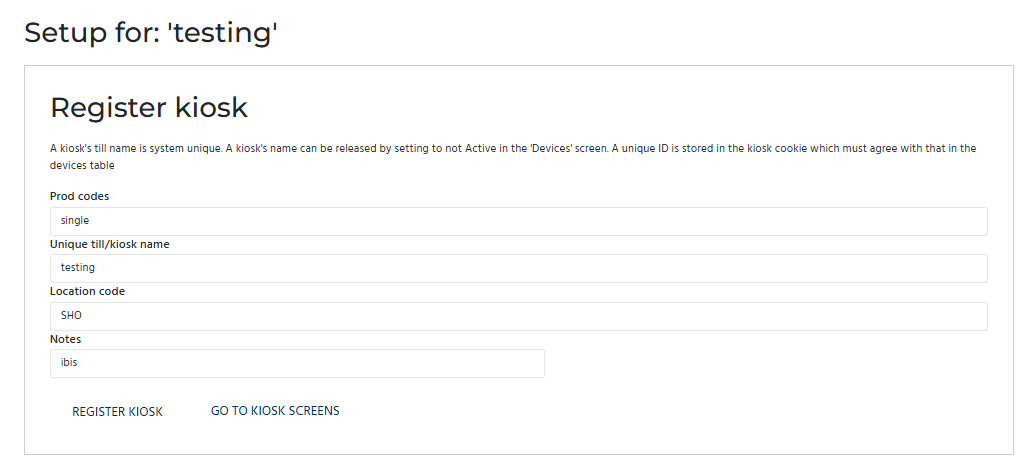
On the /kiosksetup screen you'll see a Register kiosk box with four fields to fill in:
- Prod codes – enter the product codes of each product that will be displayed on the kiosk.
- Unique till/kiosk name – must be unique across the system.
- Location code – this pulls directly from the IBIS system, so it must match a location code that already exists there exactly. For example, if the kiosk sits under the Shop location and the location code for Shop is SHO, enter SHO.
- Notes – optional. Add anything special about that kiosk here, for example "front counter, second monitor faces the door". This is for internal reference and is visible to IBIS and your team in the client, not to customers.
Click Register Kiosk.
Note: Setting the location is vital. If no location is set, the device will not register and its activity will not pull through correctly in reporting.
Once you're registered, the kiosk is issued its own ID behind the scenes (an NxID), which needs to match the Active record for that kiosk in the IBIS Device screen. This happens automatically, you don't need to do anything with it yourself.
If you need to reuse a kiosk name, the existing record must be disabled in the Device screen within the IBIS Client first.
Product selection
If you've set up more than one product, your customers will see a selection screen first, so they can choose which one they want before booking. With just one product configured, the kiosk skips that screen entirely and takes them straight into the booking flow.
Images shown on the product selection screen are pulled from each product's own images. Add or update these in the Image Manager against the product itself, the same way you would for any other ecommerce product.
Set customer messages and departure cutoff time (/kiosksetup)
HTML Screen Messages
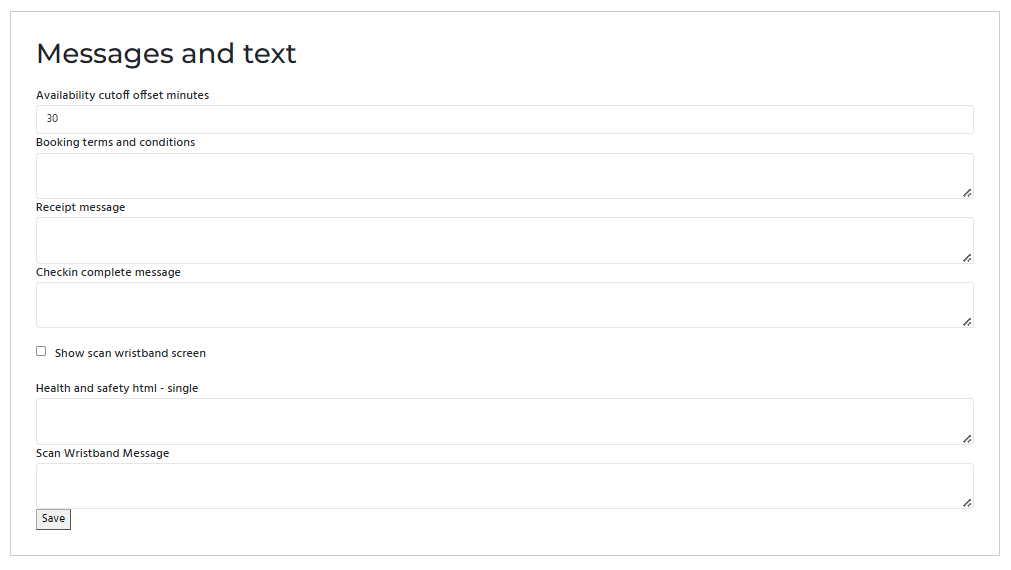
The /kiosksetup screen also lets you personalise what customers see and read at each stage of their visit, from booking terms right through to their check-in confirmation:
- Booking terms and conditions – shown before the customer proceeds.
- Receipt message – displayed on the receipt screen.
- Checkin complete message – shown after a customer checks in. Useful for telling them what to do next.
- Scan Wristband message – shown on the Wristband scanning page, ideal for directions on where to get the wristband and where to scan it.
Note: Show scan wristband screen – tick this to add a wristband scan step, with its own Scan Wristband Message shown on that screen. Mainly used for EpicShot integrated customers.
You'll also see a separate Health and safety html field appear for each individual product once you've entered your product codes, since different products can have different safety requirements or briefings.
All of these accept simple HTML formatting, the same as your confirmation, reminder and thank you emails. That just means you can bold text, add line breaks, and so on, without needing any design skills.
For example, typing this:
<b>Welcome!</b><br>Please see a staff member to collect your wristband.
Would show on screen as:
Welcome!
Please see a staff member to collect your wristband.
Note: If you'd like to include images in any of these text fields, get in touch with the Helpdesk and we'll add them for you. Images just need to follow our standard ecommerce image specs. This is separate from product images on the selection screen, which you manage yourself in the Image Manager.
Departure cutoff time
The cutoff time controls which departures show on the kiosk. It hides any departure starting within the set window, so customers cannot book onto something that is about to leave.
For example, with a cutoff of 30 minutes, the kiosk will not show any departures in the next 30 minutes. A 2:00pm departure stops appearing at 1:30pm.
Think about how long your customers realistically need to check in and reach the departure point, then set the cutoff to match.
Smartpay EFTPOS pairing
If you're taking payments through Smartpay, you'll need to pair the physical EFTPOS terminal with your kiosk so it knows where to send transactions. Follow the steps below to get it connected.
Note: The kiosk must already be registered before the terminal can pair. If pairing keeps failing, check the kiosk's registration and details first.
Click the section to expand for further details
Pair the Smartpay terminal
- Press Function.
- Press 3 for Config.
- Enter the config password
833767. - Press 1 for POS Integrations.
- Press 1 for Authorise POS.
- A pairing code appears on the terminal screen.
- Enter the pairing code into the Pairing key field on the
/kiosksetupscreen and click Try and Pair.
Pairing status changes to True once the terminal is connected. From /kiosksetup you can click Go to Kiosk Screens to confirm the customer flow works end to end before locking the device down.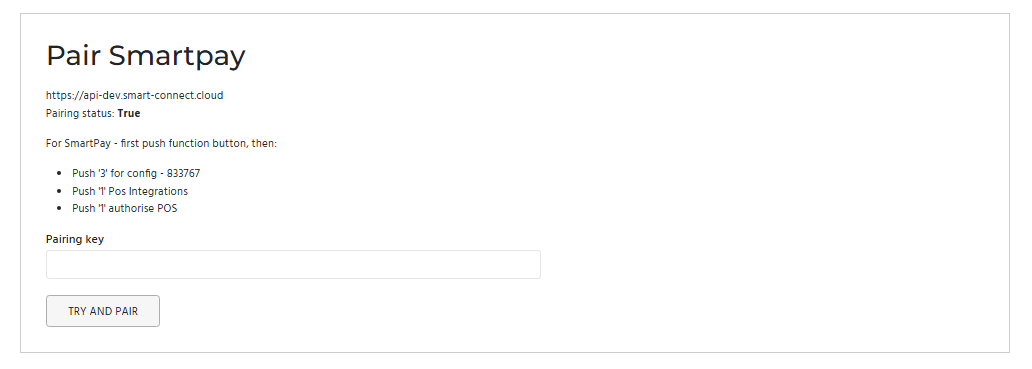
If pairing does not go through
- Confirm the kiosk has been registered first. The terminal can only pair once the kiosk is registered.
- Check both devices are powered on and on WiFi.
- Confirm the network does not have device isolation enabled.
- If the code has timed out, generate a fresh one on the terminal.
- Restart the EFTPOS device and try again.
Configuration requirements checklist
Before you open up to customers, run through this list to make sure nothing's been missed:
- Dedicated Administrator Windows account
- Sleep disabled
- Screen timeout disabled
- Kiosk enabled in normal Chrome via
/kiosk/allow/ibiskiosk26 - Kiosk registered via
/kiosksetup, with a valid location code, and NxID active in the IBIS Device screen - Smartpay terminal paired
- Chrome configured in kiosk mode with the correct kiosk URL in the shortcut
- Windows swipe-up gesture disabled
Quick reference
URLs
- Enable kiosk (once per device):
/kiosk/allow/ibiskiosk26 - Setup screen:
/kiosksetup - Running kiosk:
/kiosk
Smartpay EFTPOS menu path for pairing
Function > 3 (Config) > 833767 > 1 (POS Integrations) > 1 (Authorise POS)
Support
For any issues with setup or pairing, get in touch with our Helpdesk at help@ibis.co.nz.