
TABLE OF CONTENTS
- Prepare for ibis login via Microsoft SSO
- Log in using Microsoft SSO
- Generic logins and PIN auditing
- Sharing a computer
- Troubleshooting
Microsoft Single Sign-On (SSO) lets staff use their organisations Microsoft work accounts to sign in to the IBIS Windows client and IBIS Online.
IBIS Support will coordinate setup with your Microsoft Entra administrator or IT provider. We’ll first enable SSO in a test environment so your administrator can approve the IBIS applications, then agree on a time to enable it in production.
Important: Once SSO is enabled in an environment, Microsoft sign-in replaces the usual IBIS username and password login for that environment.
Existing staff can retain their IBIS accounts and permissions by linking their Microsoft account to their existing IBIS user. This must be completed through the IBIS Windows client before they can use IBIS Online.
To get started, contact help@ibis.co.nz with your Microsoft Entra tenant name, tenant ID, and the contact details of the administrator who will approve the applications.
Prepare for ibis login via Microsoft SSO
Step 1: Inform IBIS Support
Email help@ibis.co.nz to enable SSO logins and provide your Microsoft Entra ‘Tenant Name’ and ‘Tenant ID’ as follows:
- Log into the Entra Admin Center portal: entra.microsoft.com.
- Navigate to Identity > Overview or search for ‘Tenant properties’.
- Alternatively, contact your IT supplier for the Tenant ID.
Step 2: Co-ordinate setup
Approve the IBIS applications in UAT
IBIS Support will configure SSO in the UAT environment and let you know when it is ready for approval.
- Once provided with your Tenant ID, IBIS will prepare your setup for SSO logins.
- IBIS will set up a UAT environment with the tenant ID added to allow for app registration. Just note that during this time, the UAT environment will only be accessible via SSO once this is set up.
UAT access: While SSO is enabled in UAT, that environment will only accept Microsoft sign-ins.
Your Microsoft Entra administrator must approve the desktop and browser applications on behalf of your organisation.
Approve the desktop applications
In the IBIS Windows client:
- Select Server… on the login screen.
- Change the server connection to nxserver-uat.ibisres.com.
- Tick Use Microsoft Identity.
- Sign in with your Microsoft administrator account.
- Approve IbisNx.Client and IbisNx.Server, including their requested permissions, when prompted.
Approve the browser application
In a web browser:
- Open nxserver-uat.ibisres.com.
- Select Microsoft SSO, then Sign in with Microsoft.
- Sign in with your Microsoft administrator account.
- Approve IbisNx.Server.Webapp, including its requested permissions, when prompted.
Once the approvals are complete, IBIS Support can disable SSO in UAT if staff need to continue using their usual IBIS logins before the production changeover.
Coordinate the production changeover
Once the applications have been approved, IBIS Support will agree on a time with you to enable SSO in production.
Before the changeover, ensure staff:
- Know their existing IBIS username and password so they can link their accounts.
- Understand that their first SSO login must be completed through the Windows client.
- Know how to enable Use Microsoft Identity in their server connection settings.
Step 3: Define the default user within the IBIS application
A user named default will be added as part of the SSO configuration, with standard frontline permissions. Newly created SSO users will receive these permissions.
Review this user’s permissions to ensure they are appropriate for new staff. Existing users who link their Microsoft account to their existing IBIS user will retain their current IBIS permissions.
Log in using Microsoft SSO
- Update your server connection in the IBIS desktop application:
- Select Server… on the login screen.
- Check that you are connecting to your usual production server, rather than UAT.
- Tick Use Microsoft Identity and log in.
If you select Use Microsoft Identity before IBIS has enabled SSO for that environment, login will return an error. Once SSO is enabled, login attempts without this option selected will also return an error.
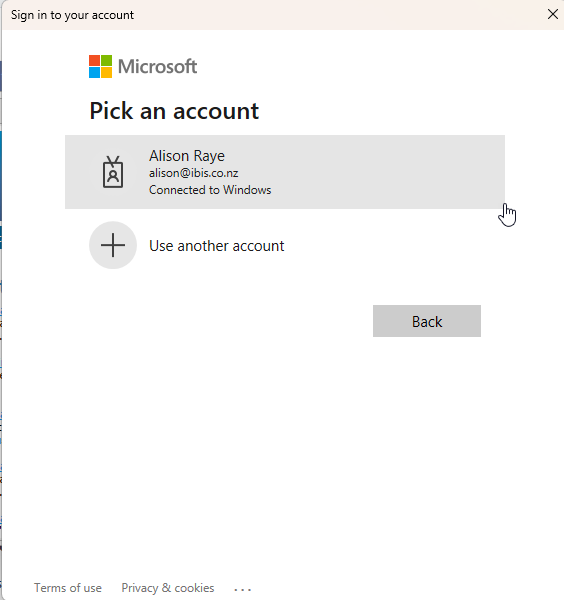
- Select your Microsoft account
- At the Pick an account prompt, select your organisation’s Microsoft work account.
- If you are already signed in to Microsoft on the computer, your account may appear in the list. Otherwise, select Use another account and enter your Microsoft sign-in details.
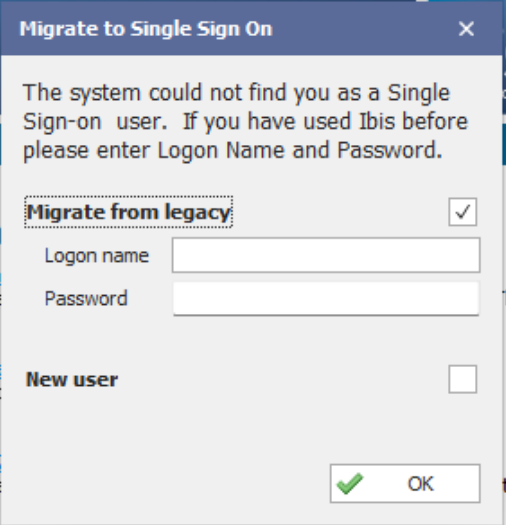
- Link your existing IBIS user or create a new user
During your first SSO login, a prompt will let you either:
- Link to an existing IBIS user: use this option if you already have an IBIS login, so you retain your existing account and permissions.
- Create a new user: use this option if you do not already have an IBIS account. Your permissions will be copied from the default user.
You only need to link your accounts once. On subsequent logins, select your Microsoft account when prompted; you will not need to enter your existing IBIS username and password again.Once you have completed this process through the Windows client, you can also sign in to IBIS Online using Microsoft SSO.
Closing the IBIS client does not necessarily sign you out of Microsoft. If you share a computer, check that you select your own Microsoft account each time you sign in.
Account selection: SSO does not provide an automatic “remember me” login in the IBIS Windows client. You will be prompted to select a Microsoft account each time you log in.
Generic logins and PIN auditing
A generic IBIS login must have a corresponding Microsoft Entra account to sign in using SSO.
Staff identified by PIN for audited activities, such as POS transactions, do not each need an Entra account, provided they exist in the IBIS Users screen and have an assigned PIN.
Sharing a computer
Important: Logging out of IBIS or closing the Windows client does not necessarily sign you out of Microsoft. Your Microsoft account may remain available for selection the next time someone opens IBIS.
On a shared computer, always check that you select your own Microsoft account.
To sign out of the Microsoft session used for IBIS:
- Start the IBIS login process again.
- At the Microsoft account-selection prompt, click the three dots next to your account.
- Select Logout, or Logout and Forget to also remove the account from the list.
Troubleshooting
I get the following error when trying to log in with SSO
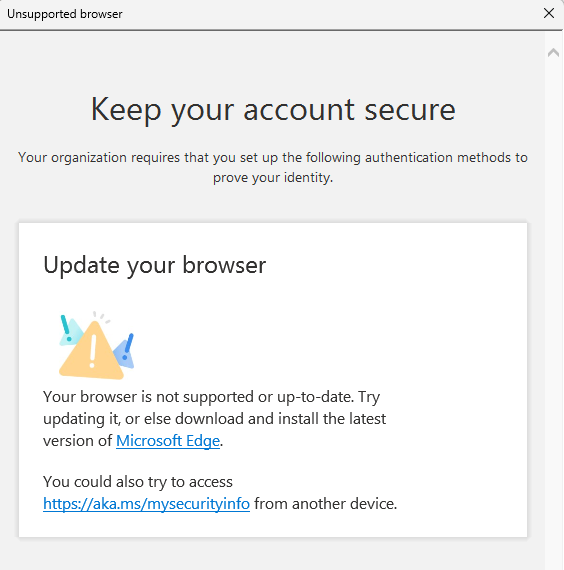
If Microsoft prevents sign-in because your account’s security details need to be set up or reconfirmed:
- Sign in to your Microsoft work account in a web browser.
- Complete any prompts to set up or reconfirm your security details.
- Return to IBIS and try signing in again.
- If you cannot complete these steps, contact your Microsoft Entra administrator or IT provider.
- For other IBIS SSO login issues, contact help@ibis.co.nz and include the error message or a screenshot.