
A package is a combo product that contains two or more reservation products (activities, appointments, hire or ticketing/other supplier products) and can also include retail items. When a package is booked, it automatically creates reservations for all included products.
Packages can be configured for:
- Individuals: Each package is charged per person and books 1 place per person per reservation, e.g. one Adult or Child.
- Groups: Each package is charged per group and books a specified number of places per reservation, e.g. a Couple or Family package.
TABLE OF CONTENTS
- Overview of the package setup screen
- Create a package
- Best practices for managing retail items in packages
- Configure package groups for e-commerce
- Common setup issues
Overview of the package setup screen
The Package setup screen has two main areas:
- Left: Grid list of all your packages. Select a row to edit a package.
- Right: Package details and setup.
Tabs on the right:
- Overview: Settings for the package as a whole (name, style, sell method, online settings etc.).
- Components and options: Settings for the components that make up the package (reservations products, retail items, timing rules, package price options).
- Product pricing: Map package price options to the reservation products included in the package.
Tip: You can add more columns to the grid to make bulk editing easier. See Working with IBIS grid screens
Create a package
Step 1: Create the package
- Go to the Package setup screen and click Add.
- Enter a unique code for the package (max 10 alphanumeric characters).
- Specify the package name (e.g. Women's Retreat).
- Choose the Sell method (Internal, Online, or On Request).
- Set the package Start Date (when it becomes bookable)
- Select the Style: Individual or Group
- Click Save. The package now appears in the grid. Highlight it to configure additional settings.
Field name Description Promotion Promotion the package discounts will be recorded against. Internal note An optional description for internal reference. Max places Max quantity bookable online. Allow multiple Tick to allow more than one package to be booked online. Active Tick to make the package sellable. Online name Display name for e-commerce and agents. Package Group Used to group packages in the Availability screen. Sell method How the package can be booked (Internal, Online or On Request) Short/Online description Display text for the e-commerce site. Agent access Restrict agent access. Allowed memberships Restrict to certain membership types. Max commission Max commission payable to agents. Max duration Max time in which all package components must be completed. Start date When the package becomes available. Time of day/week Restrict availability by time/day. Excluded dates Specify blackout dates.
Step 2: Set up package components
Once the package details are set up, you can add the products, retail items and price options that make up the package.
Add reservation products:
- Highlight the package and go to the Components and Options tab.
- In the Products in package section, select the first reservation product from the dropdown.
- Enter the duration and time parameters for the component.
- Add additional products using Enter or Tab, specifying duration and optional min/max wait times between components.
Adding retail items:
- In the Retail in package section, select the retail items to include in the package from the dropdown.
- Specify the quantity and price per unit.
For group packages, retail items are not multiplied automatically - enter quantity based on what the group should receive.
Adding package price options:
- In the Pricing options in package section, create package price options such as Adult, Child, Senior, Couple, or Family.
- For group packages, specify group units (number of people the package represents).
Click Save to continue.
| Name | Description |
|---|---|
| Duration | The duration of the product. |
| Min wait | Minimum amount of time to wait between finishing previous component and starting next component |
| Max wait | Maximum amount of time to wait between finishing previous component and starting next component |
| Fixed times | For products that you operate: Fixed time in 24-hour format (e.g. 10:00). |
| For products operated by an external supplier: SAME_AS_PRIMARY Matches the primary product time.
Sets timing relative to the primary product in format XdXhXm. Examples:
|
Step 3: Configure package pricing
Once you have specified your components and options, you need to add the pricing for the reservation products within your package. Each package price option must map to an existing price option on the reservation products included.
The same reservation product price option can be mapped to multiple package components as long as the package price is the same for each component.
- Open the Product pricing tab.
- The grid will auto-fill with the products and package price options from Step 2.
- Use the drop-down in the Prod opt code column to map each package price option to a price option on each product.
- The Base price will auto-populate with the product pricing for the current price season.
- Enter the Package Price for each product. For group packages, the package price should be the per person price as the price will be multiplied by the group units.
- Discount columns update automatically. Check the total at the bottom for accuracy.
- Click Save.
If the price option has restrictions check they apply to the package too. If not, use a different price option for the package. Price options must also be available in the current price season to be mapped.
Group packages: Restrict a component from being multiplied by group units
If you map a package price option to product price options that take multiple places (e.g. 2 Adults or Family), you can prevent a package component from being multiplied by the group size.
For example, if you create a Family package that maps to a price option taking 4 places, and the component is not restricted, it will be multiplied by the group size (e.g. 4 × Family = 16 places).
To restrict multiplication:
- Go to the Components and Options tab.
- In the Products in Package section, right-click the column header and select Column Chooser.
- Double-click the Name field to add it to the grid.
- For any component you do not want to be multiplied, enter no-multiply in the Name field.
- Click Save.
When using the no-multiply setting, ensure the package price for the component is set to the total price for the full group as it will not be multiplied by the group units.

Note: The package total price calculation on the Product pricing tab will appear incorrect as it does not account for this setting. However, the booking will calculate correctly.
Step 4: Test out your new package
Save any additional changes and test your new package out. Confirm the following:
Components are booked correctly
Timing and offsets are accurate
Online display and pricing are correct
Best practices for managing retail items in packages
Retail item counts in group packages:
- One item per guest (e.g. a free t-shirt per guest): enter the units as the total group number and the price per item.
- One item per group (e.g. a sharing platter): enter the units as 1 (if 1 per group) and the price per item.
Stock items in packages:
As retail items in packages are deducted at POS on the sale date rather than the travel date, inventory levels can be impacted when stock items are included in a package. If you want the stock to reduce on the travel date, use a non-stock retail item in the package as a voucher for the item, then exchange it for the actual stock item at POS on the date of travel.
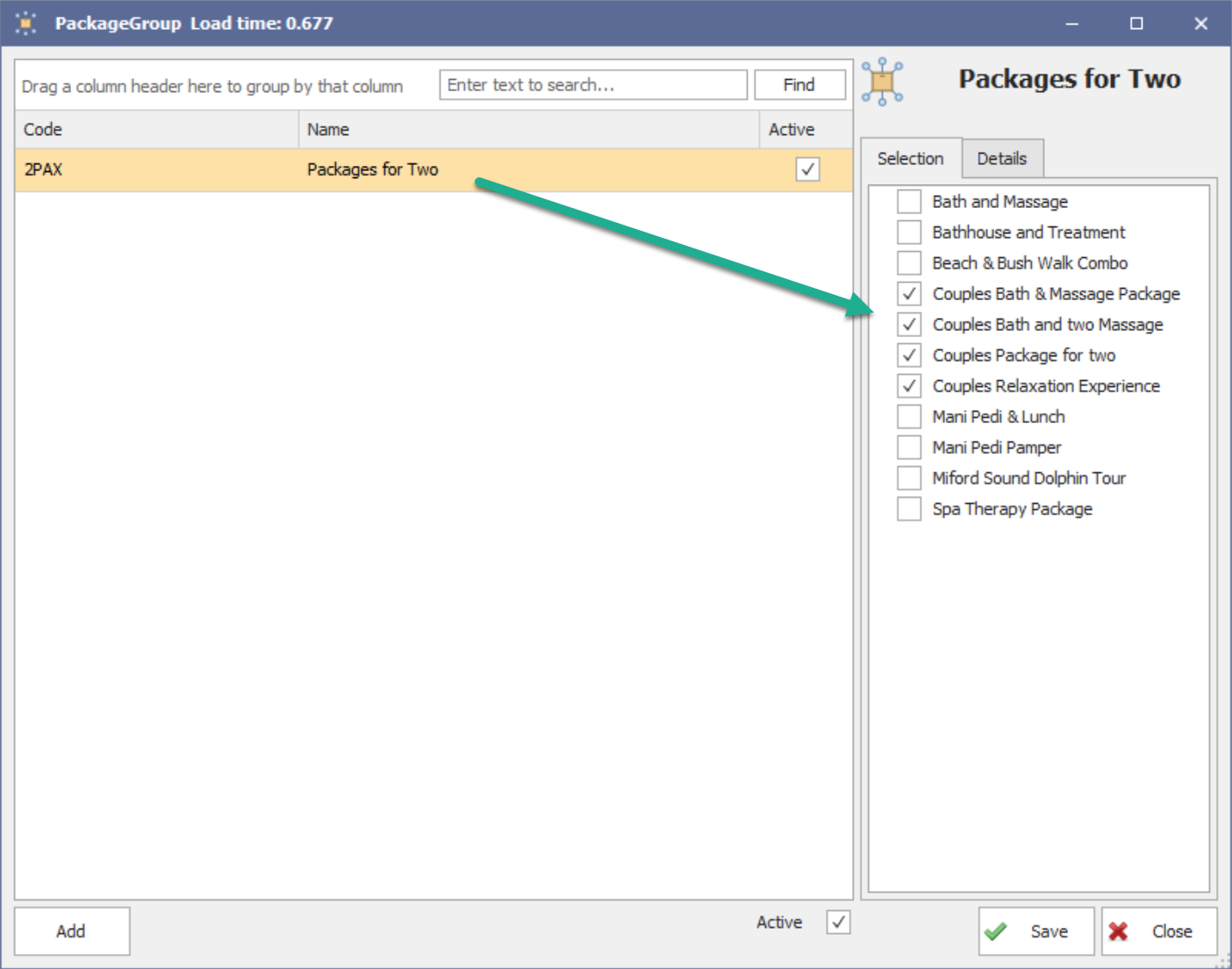
Configure package groups for e-commerce
Use the Package Groups to organise your packages on your e-commerce site.
- Open the Package groups screen.
- Click Add, then enter:
- Code: Max 10 alpha-numeric characters.
- Name: Appears on e-commerce and in the Availability screen
- On the Selection tab, tick the packages to include in the group.
- Use the Details tab to enter a description or update group details.
- Click Save to apply changes.
Common setup issues
No availability shows in the Availability screen
- Check duration and minimum/maximum waits fit with your product component departure times.
- Ensure the total package duration fits within any Max Duration you’ve set.
- Add minimum/maximum wait times to your components (if not set up already). If no min or max wait times exist, the system will try to schedule the next component only at the exact duration following the previous component.
Cannot find price option in Remote Code mapping
- The drop-down pulls from the current price season. Ensure the product has a price option available for the current price season.
Package doesn't appear on e-commerce site
- Check the Sell method on the package in Package setup is set to Online.
- If you have package groups set up, make sure your package has been added to an existing online package group or create a new package group in the Package groups screen.
Error when booking: "The total number of places in this booking is zero"
- Ensure you have mapped a price option for each product within the package. This option must be a price option that takes a place. You can't map to a price option that takes 0 places.
- Ensure the mapped price option for each product within the package exists on the pricing season for the date you are trying to book.